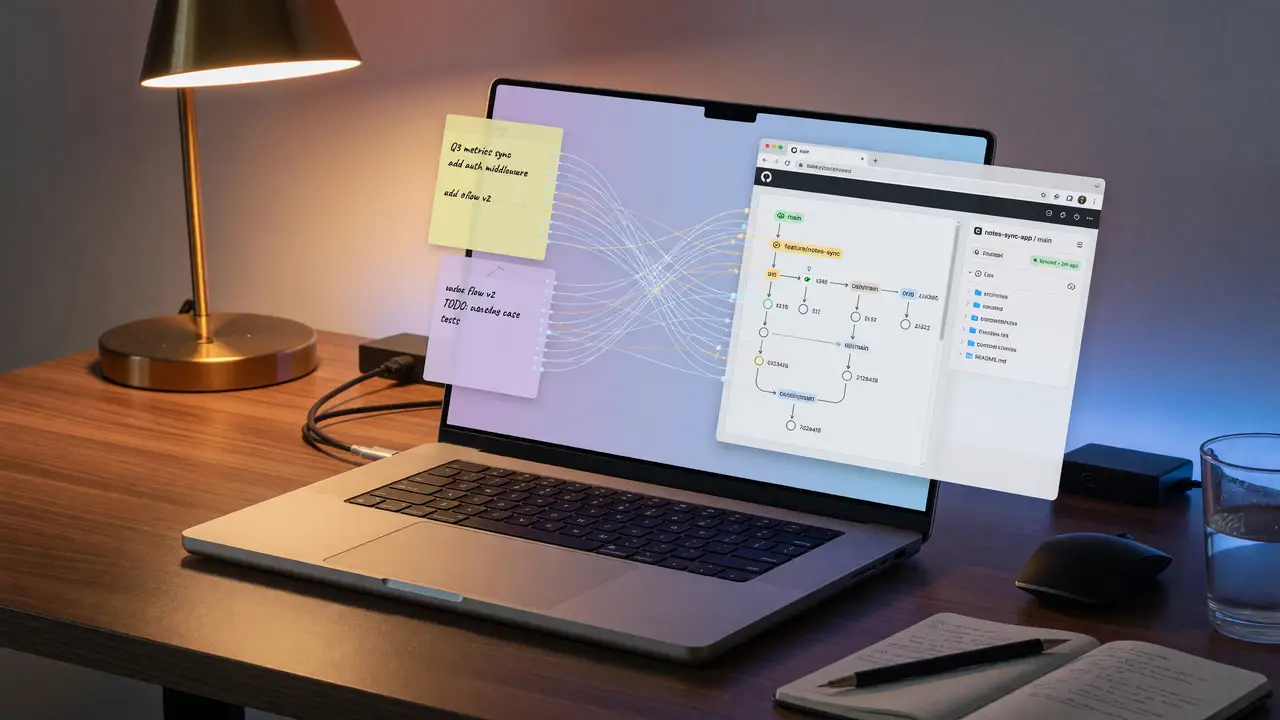
Automating Your Blog: Syncing Obsidian Notes Directly to Git and the Web
Learn how to automate publishing by syncing Obsidian notes to Git and GitHub Pages. Free alternative to paid sync with version history and background deploys.
Writers who treat Obsidian as their primary workspace often hit the same wall: manual exports and uploads break flow. Git integration removes that step by turning every save into a deploy trigger.
Why Git Beats Paid Sync for Public Content
Obsidian Sync is convenient, but it costs $8 a month for 1 GB of versioned storage. Git gives you permanent history, 15 GB free on GitHub, and no recurring fees. Plenty of developers and desktop-heavy users have switched entirely once they set up the commit-and-push cycle.
Mobile is where things get tricky. Obsidian Sync handles conflicts automatically across devices. Git needs either a JavaScript workaround or an external shell, and many people find those setups unreliable.
| Aspect | Obsidian Git | Obsidian Sync |
|---|---|---|
| Cost | Free | $8/mo |
| Version history | Permanent | 1–12 months |
| Storage | 15 GB (GitHub) | 1 GB standard |
| Mobile reliability | Manual or flaky | Native and stable |
| Blog automation | Direct to GitHub Pages / Actions | Requires export step |
That tradeoff becomes clear once you look at mobile support.
Core Plugin and Repository Setup
The go-to tool is the Git plugin by Vinzent03. It has over two million downloads and stays actively maintained. Install it from the community plugins list, then set up a GitHub repository.
Create a private repo and generate a Personal Access Token with repo scope. On desktop, open your vault folder and run:
git clone https://<TOKEN>@github.com/<USER>/<REPO>.gitRestart Obsidian. The plugin adds commands like “Commit all changes” and “Push”. Turn on scheduled auto commit-and-sync in the settings so it runs every few minutes.
Publishing Workflow with GitHub Pages
Push your Markdown files to the main branch or a dedicated docs folder. Enable GitHub Pages in the repo settings to serve the content. Most writers add a GitHub Action that converts notes to HTML on every push.
The usual sequence looks like this:
- Edit in Obsidian.
- The plugin commits and pushes on schedule.
- An Action builds the site (Quartz, Astro, or Eleventy).
- Pages deploys the result.
Quartz stays the simplest Obsidian-native choice (12.6k stars). Astro (54.5k stars) and Eleventy (19.2k stars) give you more layout control if you need it.
Here’s how the flow runs end to end:
flowchart TD
    A[Edit note in Obsidian] --> B[Git plugin auto-commits & pushes]
    B --> C[GitHub Action detects push]
    C --> D[Build site with Quartz/Astro/Eleventy]
    D --> E[Deploy to GitHub Pages]
    E --> F[Live update on web]
Mobile and Conflict Handling
Mobile Git support depends on isomorphic-git inside the plugin or external apps like Working Copy and iSH. These work for occasional pulls, but they often hit memory limits or force manual conflict resolution.
Many users keep Obsidian Sync for notes that need reliable mobile editing and run Git only on desktop. Desktop-centric bloggers accept the extra step in exchange for free automation and complete history.
Practical Next Steps
- Start with the Vinzent03 Git plugin on desktop and test scheduled commits.
- Add a GitHub Action that runs your chosen static generator on push.
- Keep a
.gitignorefile to exclude large assets or private folders. - Watch the first few automated commits before trusting the setup for production.
Once the pipeline is running, publishing happens in the background instead of as a separate chore. You end up with a version-controlled source of truth that updates the web without ever leaving Obsidian.